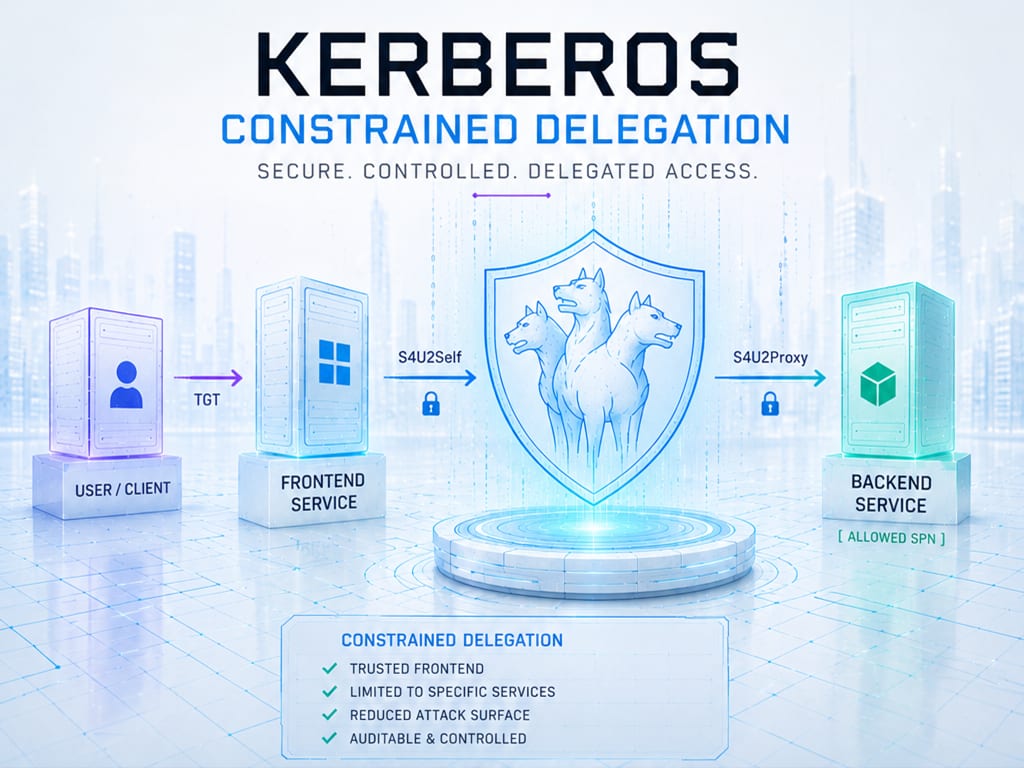
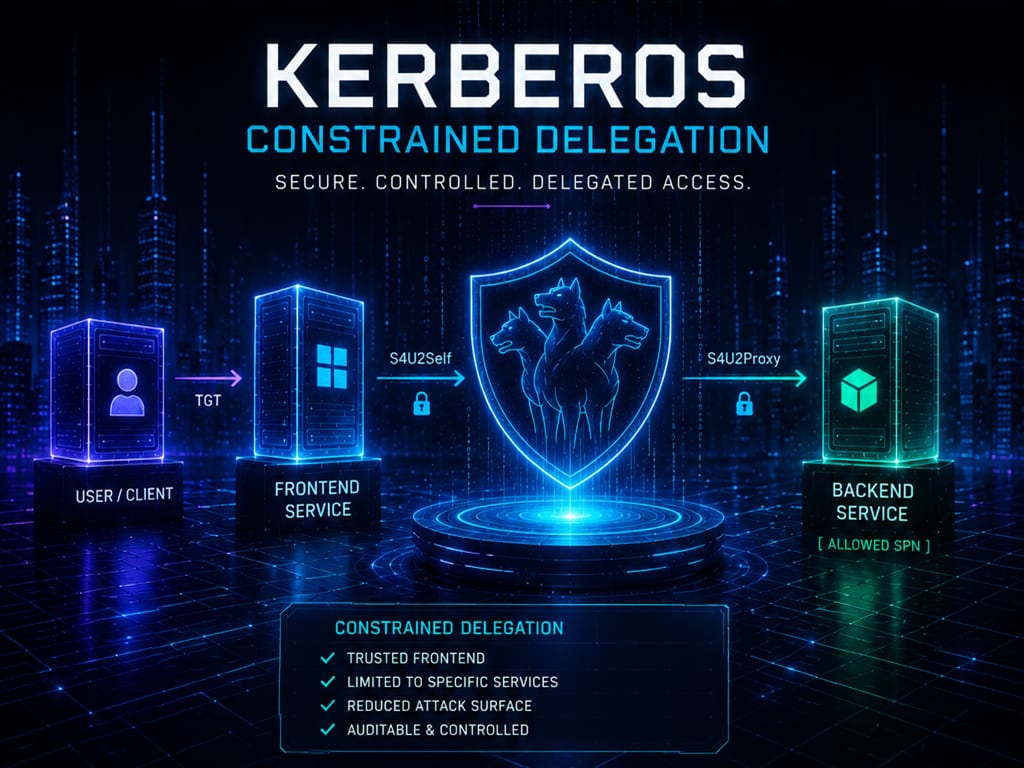
Configure Kerberos Constrained Delegation (KCD) on NetScaler
This document describes how to configure Single Sign-On (SSO) on the NetScaler using Kerberos Constrained Delegation (KCD). The authentication method that precedes this process is up to you, it can be anything: SAML, OAuth, LDAP, LOCAL, CERTIFICATE, and so on, as long as a username is available for which delegation can be requested.
The example throughout this guide uses OAuth (a 401-based API flow with a JWT bearer token) as the front-end authentication, delegating to a back-end SharePoint site behind IIS. The KCD mechanism itself is identical regardless of how the user authenticated up front.
1. Kerberos Constrained Delegation
Kerberos SSO is a variant of SSO mechanism through which a proxy, the NetScaler, provides seamless access to a protected resource for a user who logged in to the ADC. Traditional SSO mechanisms such as Basic, NTLM or forms require the user’s password in order to provide SSO. Kerberos SSO works with or without the user’s password. When the user’s password is available, SSO is established through impersonation. When the password is not available, SSO is established by delegating a user (say, a super user) who is allowed to request “tickets” for different users and services.
A major advantage of Kerberos SSO is that the NetScaler need not be aware of the user’s password. With the growing adoption of One Time Passwords (OTP), this provides a lot of flexibility in resource access.
In short, Kerberos SSO is possible in the following ways:
| Kerberos SSO type | Requirement |
|---|---|
| Impersonation | User’s password |
| Impersonation | User’s certificate and specialized Citrix Receiver |
| Constrained Delegation | Delegated user’s password |
| Constrained Delegation | Delegated user’s keytab |
| Constrained Delegation | Delegated user’s certificate and Certificate Authority certificate |
In this document I cover Constrained Delegation with the accompanying password and/or keytab file; the mechanism is exactly the same either way: Constrained Delegation.
2. Authentication flow
The diagram below (also shown at the top of this article) illustrates the complete flow, from the initial OAuth token request all the way to the Kerberos-authenticated response from SharePoint.
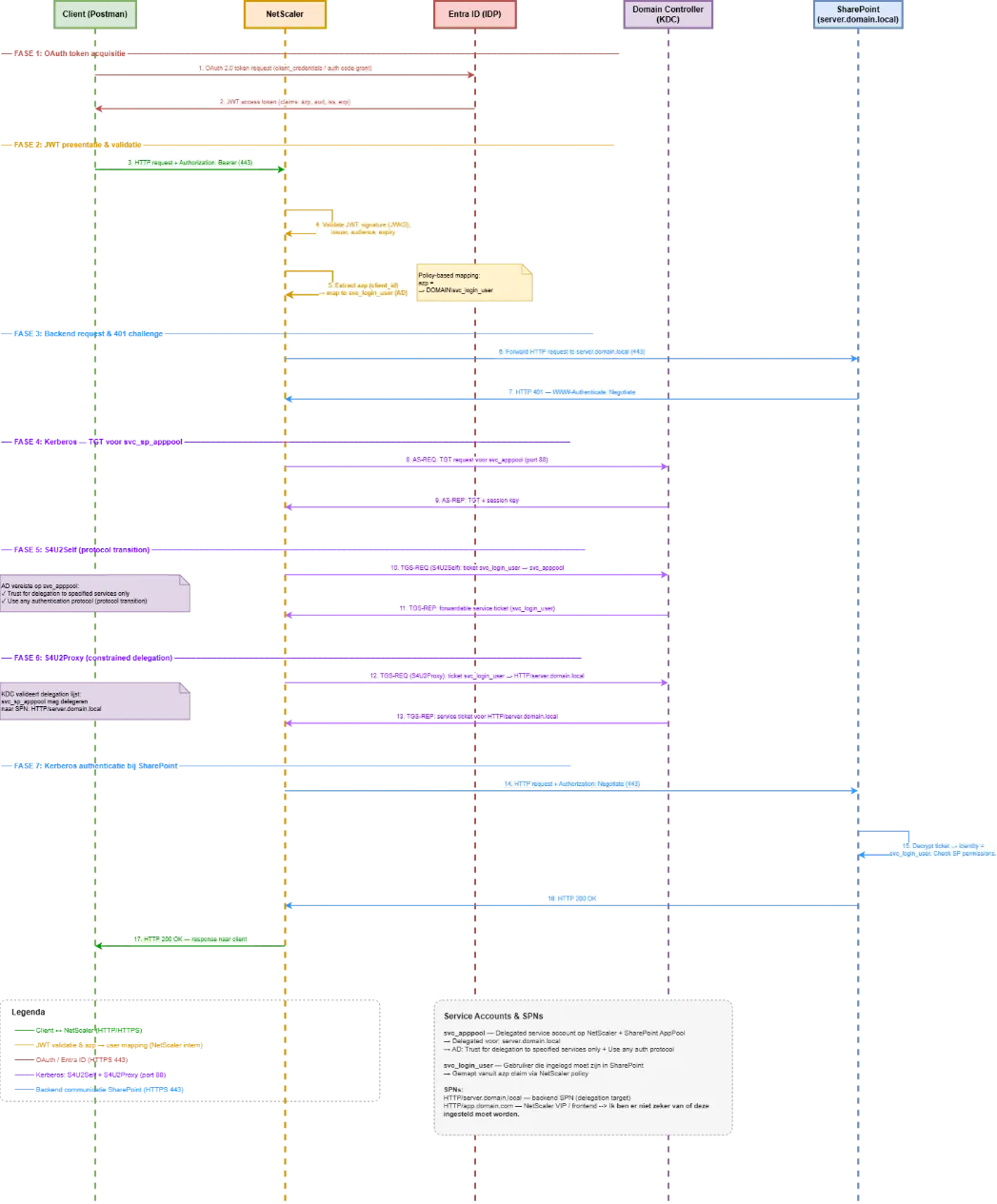
Phase 1, OAuth token acquisition
Step 1: The client (Postman) sends an OAuth 2.0 token request to Entra ID. This can be a client_credentials grant (with client_id + client_secret) or an authorization code grant. The endpoint is the token endpoint of the Entra ID tenant.
Step 2: Entra ID validates the credentials and returns a JWT access token. This token contains claims such as azp (the client_id of the application), aud (audience), iss (issuer URL of the tenant) and exp (expiry).
Phase 2, JWT presentation & validation
Step 3: The client sends an HTTP request to the NetScaler VIP (e.g. https://app.domain.com) with the JWT token in the Authorization header: Authorization: Bearer eyJ.... There is no redirect, no cookie, no browser, it is a direct API call.
Step 4: The NetScaler validates the JWT token. It retrieves the public keys via the JWKS endpoint of Entra ID and verifies the cryptographic signature. It also verifies the iss (does it come from the expected tenant?), the aud (is the token intended for this resource?) and the exp (has the token not expired?).
Step 5: The NetScaler extracts the azp claim from the JWT token. This is the client_id of the registered application in Entra ID. Through a policy-based mapping on the NetScaler, this azp value is translated into the AD account svc_login_user. This is the “trick”, a static mapping from application identity to user identity. From this point on, the NetScaler knows: “this request must be handled as svc_login_user.”
Phase 3, Back-end request & 401 challenge
Step 6: The NetScaler forwards the original HTTP request to the back-end SharePoint server (server.domain.local) on port 443. At this point the NetScaler still sends the request without Kerberos authentication, it first tries to determine what the back-end expects.
Step 7: SharePoint responds with an HTTP 401 Unauthorized and the header WWW-Authenticate: Negotiate. With this, SharePoint indicates that it expects Kerberos or NTLM authentication. The NetScaler now knows it must supply a Kerberos service ticket.
Phase 4, Kerberos: TGT for the service account
Step 8: The NetScaler authenticates to the Domain Controller (KDC) as svc_apppool with an AS-REQ (Authentication Service Request) on port 88. This is the standard Kerberos authentication of the service account itself, the NetScaler proves that it possesses the credentials of svc_apppool. This is done by means of a keytab file that is imported into the NetScaler.
Step 9: The KDC validates the credentials and returns an AS-REP containing a TGT (Ticket Granting Ticket) and a session key for svc_apppool. This TGT is the “passport” with which the NetScaler can request further tickets.
Phase 5, S4U2Self (protocol transition)
Step 10: The NetScaler sends a TGS-REQ (Ticket Granting Service Request) to the KDC with the S4U2Self extension. The request reads: “I am svc_apppool, and I know that svc_login_user has been authenticated through another protocol (JWT/OAuth). Give me a service ticket for svc_login_user to myself.” This is the protocol transition, the switch from OAuth to Kerberos.
Step 11: The KDC checks whether svc_apppool is allowed to perform protocol transition (the AD setting “Use any authentication protocol” must be enabled). If so, the KDC returns a TGS-REP with a forwardable service ticket. This ticket states: “svc_login_user is authenticated to svc_apppool.” The forwardable flag is crucial, without it, the next step (S4U2Proxy) cannot work.
Phase 6, S4U2Proxy (constrained delegation)
Step 12: The NetScaler sends another TGS-REQ to the KDC, this time with the S4U2Proxy extension. It supplies the forwardable ticket from step 11 as proof and says: “Here is the proof that svc_login_user is authenticated to me. Now give me a service ticket for svc_login_user to HTTP/server.domain.local.” This is the “constrained” part of KCD.
Step 13: The KDC checks the delegation list on the svc_apppool account in Active Directory. It looks for the SPN HTTP/server.domain.local in the list of permitted delegation targets. If it is present, the KDC returns a TGS-REP with a service ticket. This ticket is encrypted with the key of the account that owns the SPN HTTP/server.domain.local, and that is svc_apppool itself, because that account also runs the SharePoint AppPool.
Phase 7, Kerberos authentication to SharePoint
Step 14: The NetScaler sends the original HTTP request to SharePoint again, but now with the header Authorization: Negotiate <base64-encoded service ticket>. The JWT bearer token has been replaced by the Kerberos service ticket.
Step 15: SharePoint receives the request and decrypts the Kerberos service ticket with the key of svc_apppool (the AppPool account). From the ticket, SharePoint reads the client principal: svc_login_user@DOMAIN.LOCAL. SharePoint then looks up the permissions of this account on the site, library or list. SharePoint sees no difference between this KCD login and a direct Kerberos login.
Step 16: SharePoint returns an HTTP 200 OK with the requested resource to the NetScaler.
Step 17: The NetScaler forwards the response back to the original client (Postman). The client receives the data without ever knowing that an entire Kerberos delegation chain took place behind the scenes.
3. Low level design
3.1 Set up a service account with a keytab
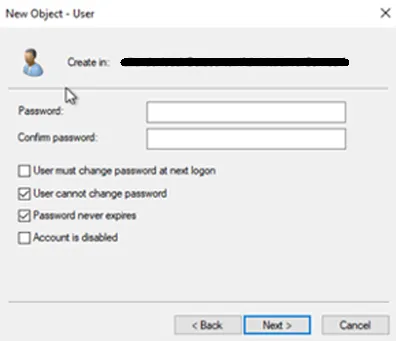
Create a user in Active Directory.
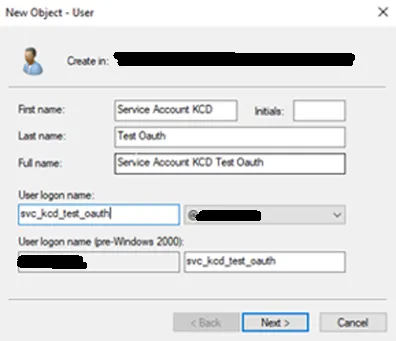
Generate a secure password (at least 25 characters).
Now it is time to set the SPN and generate a keytab file. The keytab will be placed on the NetScaler to enable KCD. This command also makes the Delegation tab available on the service account; there we configure the IIS server for which delegation will be performed.
ktpass -princ HTTP/externalurl.domain.com@DOMAIN.LOCAL -mapuser svc_kcd_test_oauth@domain.local -pass "<password_of_the_service_account>" -ptype KRB5_NT_PRINCIPAL -crypto AES256-SHA1 -out c:\test-oauth.keytabPreviously we used
-crypto Allin the command above, but that also includes insecure ciphers, which is why I now enforceAES256-SHA1only.
Open the newly created service account, click the Delegation tab and configure the IIS server for which delegation will be performed.
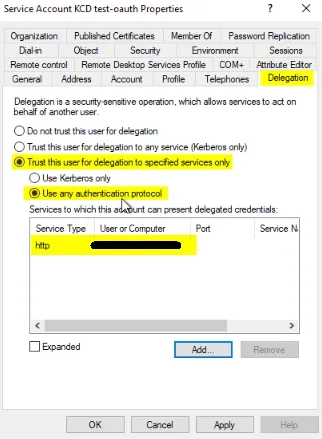
You need Domain Administrator rights to perform the change above.
Open the Attribute Editor, look up the value servicePrincipalName and verify that the SPN has been set correctly.
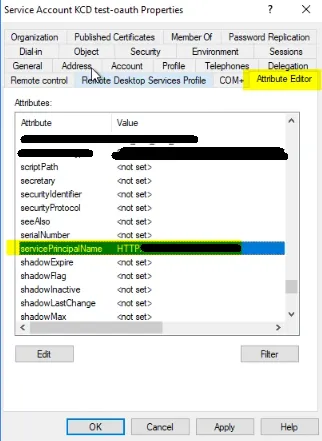
You can also perform the check above from the command line:
setspn -L svc_kcd_adc_oauth3.2 Set up a service account without a keytab (SPN only)
Follow steps 1 and 2 of chapter 3.1, then register the SPN directly:
setspn -S HTTP/svc_kcd_adc_oauth.DOMAIN.LOCAL domain\svc_kcd_adc_oauthNote: this is case sensitive.
Follow steps 4 through 6. The service account will be configured differently on the NetScaler than when a keytab is used (see below).
3.3 Install and configure the KCD account on the NetScaler
Log in to the relevant NetScaler and go to Security → AAA – Application Traffic → KCD Accounts and click Add.
- Choose a name and click Use Keytab File.
- Click Choose File and select the keytab file created earlier.
- Leave User Realm empty (see the note below) and click Create.
The User Realm may be left empty because we will use onPremisesSamAccountName as an additional claim in OAuth. The onPremisesSamAccountName comes without an FQDN, and the correct REALM is already present in the keytab file.
If you do not use the SamAccountName but the UPN instead (preferred_username in the OAuth context), the User Realm must be filled in, otherwise you will get cross realm ticket errors, because KCD does not know the realm for domain.com (that is, after all, the FQDN present in your UPN). In that case set the User Realm to DOMAIN.LOCAL.
If you have the cat /tmp/nskrb logging open, you will see that the NetScaler immediately retrieves a TGT for the service account. Verify that the HOST SPN is correct.

Next, create the traffic policy and profile. Go to Security → AAA – Application Traffic → Policies → Traffic Policies, Profiles and Form SSO Profiles → Traffic Policies and click Add.
- Choose a name:
trpo-oauth-test-sso - Click Add next to Profile.
- Choose a name:
trprf-oauth-test-sso - Set Single Sign-on: ON.
- Select the KCD account created earlier and click Create.
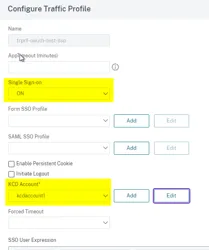
Enter the traffic policy expression True and click Create.
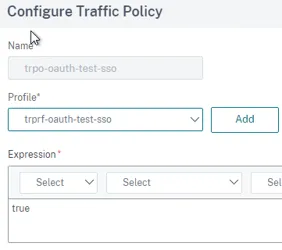
Finally, bind the policy to the load balancing virtual server. Go to Traffic Management → Load Balancing → Virtual Servers and open the Load Balancing virtual server.
- Click Policies.
- Click Add Policy ( + sign).
- Under Choose Policy select Traffic and click Continue.
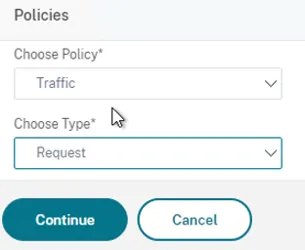
- Click Click to Select.
- Select the traffic policy created earlier and click Select, Bind and Done.
3.4 Set up IIS
If the Application Pool Identity is a service account with certain rights, and Kerberos authentication is enabled within IIS/SharePoint, the following option must be enabled: make sure that useAppPoolCredentials is set to true.
When useAppPoolCredentials is true, you are telling IIS that it needs to use its application pool identity (which we changed in the previous step to point to a domain account) to decrypt the Kerberos token/ticket that was obtained from AD and forwarded by the client to the server to authenticate the user.
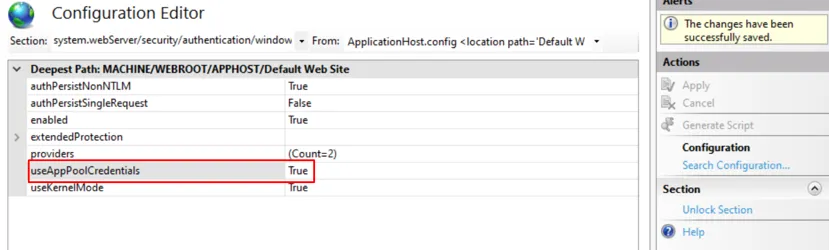
Open Server Manager and install IIS with Windows Authentication.
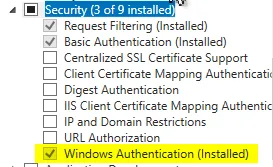
When IIS is installed, start IIS Manager and navigate to Default Web Site (under Sites). Click Authentication, then disable all forms of authentication and enable Windows Authentication.

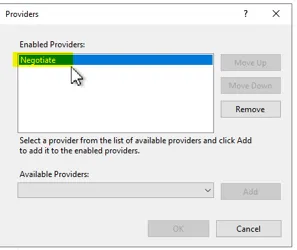
Click on Windows Authentication, then Providers (on the right side). Remove all providers and add only Negotiate, this makes sure NTLM is not used and KCD is working.
Set the Application Pool Identity to NetworkService, I saw authorization errors when this is not configured correctly.
- Click Application Pools.
- Click DefaultAppPool (in my case).
- Click Advanced Settings on the right side.
- Click the three dots for the Identity (under Process Model).
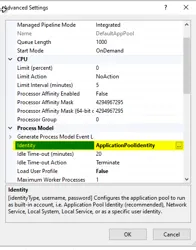
- Change this to Network Service and click OK.
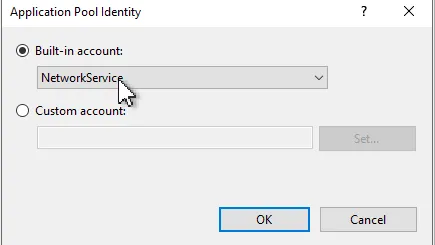
Click OK and restart IIS.
I keep the bindings and certificates out of scope, since this is a basic IIS setting.
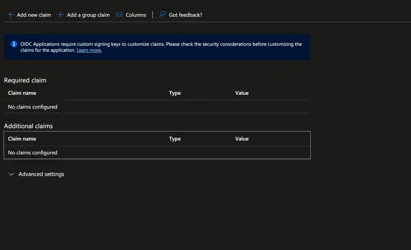
4. Add an extra claim in Entra ID via the GUI
If you get the following message:

…then the claim must be added via Graph/PowerShell; go to chapter 5 below. Otherwise:
- Log in to Entra ID.
- Go to Home → App Registrations → App Registrations.
- Find the app registration.
- Under Single Sign-On, click Edit and add the claim.
5. Add an extra claim in Entra ID via Graph/PowerShell
Change $appId to the client ID of the app registration. The script requires the Application.ReadWrite.All and Policy.ReadWrite.ApplicationConfiguration permissions.
# ============================================
# Add onPremisesSamAccountName to JWT tokens
# AppId is hardcoded
# ============================================

# Hardcoded AppId
$appId = "xx"

# Required permissions:
# Application.ReadWrite.All
# Policy.ReadWrite.ApplicationConfiguration

Write-Host "Connecting to Microsoft Graph..."
Connect-MgGraph -Scopes "Application.ReadWrite.All","Policy.ReadWrite.ApplicationConfiguration"

Write-Host "Retrieving Service Principal..."
$sp = Get-MgServicePrincipal -Filter "appId eq '$appId'"
if (-not $sp) {
    throw "Service Principal not found for AppId $appId"
}

Write-Host "Creating new ClaimsMappingPolicy..."
$claimsMappingPolicy = @{
    ClaimsMappingPolicy = @{
        Version = 1
        IncludeBasicClaimSet = $true
        ClaimsSchema = @(
            @{
                Source = "user"
                ID = "onPremisesSamAccountName"
                JwtClaimType = "onPremisesSamAccountName"
            }
        )
    }
}

$policyDefinition = $claimsMappingPolicy | ConvertTo-Json -Depth 10 -Compress
$newPolicy = New-MgPolicyClaimMappingPolicy `
    -DisplayName "Add_onPremisesSamAccountName" `
    -Definition @($policyDefinition)

Write-Host "Assigning policy to Service Principal..."
$refBody = @{
    "@odata.id" = "https://graph.microsoft.com/v1.0/policies/claimsMappingPolicies/$($newPolicy.Id)"
}

Invoke-MgGraphRequest `
    -Method POST `
    -Uri "https://graph.microsoft.com/v1.0/servicePrincipals/$($sp.Id)/claimsMappingPolicies/`$ref" `
    -Body ($refBody | ConvertTo-Json) `
    -ContentType "application/json"

Write-Host ""
Write-Host "SUCCESS: onPremisesSamAccountName claim added."
Write-Host "Have users sign in again to obtain a new token."
6. Troubleshooting
When KCD is not working correctly, the back-end server will return a 401 server error.

6.1 Important commands
| Command | Purpose |
|---|---|
cat /tmp/nskrb.debug |
View all Kerberos-related events. Sometimes nskrb.debug stays empty, from NS 11.1 51.x onward, Kerberos ticket caching moved to in-memory for better performance. |
nskrb klist -k sample.keytab -e -z |
See which ciphers are used per keytab (this example shows a new, AES256-only keytab). |
nsconmsg -d stats | grep -i kcd |
Find KCD successes and failures. |
nsconmsg -g aaa_err -d current | grep -i kcd |
Find the KCD error reason. |
cat /var/log/ns.log |
Find KCD logging from ns.log. |
start nstrace -size 0 -filter "CONNECTION.IP.EQ(<DC-IP>)" |
The best KCD logging is found in a network trace. Tickets are retrieved from the Domain Controller and ultimately presented to the back-end. Note: the correct TGT servers (domain controllers) are resolved through an SRV record request, not through the configured DNS servers. |
nsapimgr_wr.sh -ys call=ns_aaa_flush_kerberos_tickets |
Flush KCD tickets. Important, because the real error is revealed in the first stage of KCD (the AS-REQ). |
ps ax | grep nskrb |
Ensure the nskrb daemon is running. |
ls /var/krb |
Contains cached tickets. |
You can also inspect the AD event logs (Windows Security log) for event IDs 4768 / 4769 / 4770 / 4771.
6.2 A classic pitfall: duplicate SPNs break direct SSO
Symptom: after registering an SPN for KCD, normal Kerberos SSO (bypassing the NetScaler, going directly to
server01.itproof.local) suddenly stops working.
This is a classic Kerberos problem and almost always has the same cause: duplicate SPNs.
When a client (browser) requests a Kerberos ticket for HTTP/server01.itproof.local, the KDC looks up which AD account owns that SPN and encrypts the ticket with the key of that account. Only one account may own a specific SPN, that is a hard Kerberos rule.
What probably happened: the SPN HTTP/server01.itproof.local was already registered on the computer account SERVER01$ (the default when IIS runs as LocalSystem or NetworkService). The moment you also registered that same SPN on svc_sp_apppool for the KCD configuration, you had two accounts with the same SPN.
The most common result is that the KDC encrypts the ticket with the key of the wrong account. The browser receives a ticket as expected and sends it to SharePoint, but SharePoint tries to decrypt it with the key of its own AppPool account. If the ticket was encrypted with the other account’s key, decryption fails and you get a 401 Unauthorized.
Verify this on the Domain Controller:
setspn -X
setspn -Q HTTP/server01.itproof.local
This should return exactly one account. If you see two, you have found the cause. The fix is to register the SPN on only one account. Since svc_sp_apppool is both the SharePoint AppPool account and the delegation account on the NetScaler, the SPN belongs there. Remove it from the computer account:
setspn -D HTTP/server01.itproof.local SERVER01$
setspn -S HTTP/server01.itproof.local svc_sp_apppool
After that, both direct Kerberos SSO and the KCD flow work, because in both cases the ticket is encrypted with the key of svc_sp_apppool, the same account that runs the AppPool and can therefore decrypt it.
6.3 Known errors and common issues
| Error | Cause |
|---|---|
Unable to reach any KDC in realm |
DNS is not configured correctly, or the NetScaler cannot reach the Domain Controller (Kerberos ports blocked by a firewall). |
Clock Skew Error |
The date/time on the NetScaler is not correct. See NetScaler NTP synchronization. |
Error obtaining cross realm ticket |
Fill in the User Realm on the KCD account. Otherwise it tries to find a realm for, for example, onmicrosoft.com, which does not exist in a KCD context. Edit the KCD account on the NetScaler to add the User Realm. |
s4u2proxy sending reject to kernel because of error -1765328368 / Unknown principal error |
Multiple causes; mine was that the SamAccountName (pre-Windows 2000) differs from the UPN. Either remove the User Realm and add the Enterprise Realm in the KCD account on the NetScaler, or add an additional claim with the SamAccountName in the OAuth configuration at the identity provider. |
Attempting S4U2Self with @DOMAIN.LOCAL, for @DOMAIN.LOCAL (or KerberosString: Anonymous in the trace / cat /tmp/nskrb.debug) |
The name to delegate for is empty. The value in the User Name field of the OAuth action could not be obtained. |
| IIS cannot decrypt the Kerberos token/ticket | Make sure useAppPoolCredentials is set to true so IIS uses its application pool identity (the domain account) to decrypt the ticket. |
An extra CNameString in the AS-REQ |
Usually a typo in the SPN. Check with setspn -l svc_gw_sp_apppool_t. A trailing forward slash is not allowed, the service account name is case sensitive, and a wrong password will also cause this. Set the SPN again and re-export the keytab file (the SPN is contained in the keytab). |
One remaining error needs more than a one-line fix, so it is kept out of the table:
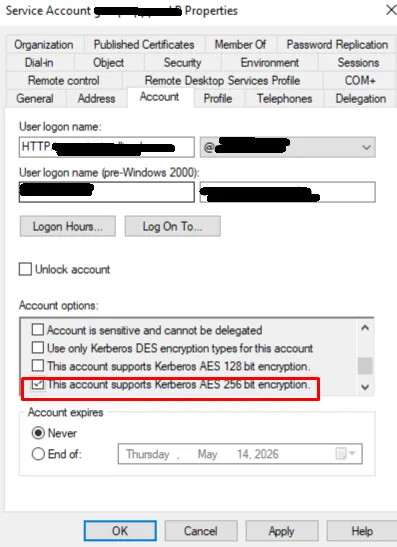
negresult: accept-incomplete, the encryption type was not set to AES256. In the trace you will see eTYPE-ARCFOUR-HMAC-MD5 (23) used instead of an AES256 cipher. On the machine that returns accept-incomplete, run:
Get-ItemProperty "HKLM:\SOFTWARE\Microsoft\Windows\CurrentVersion\Policies\System\Kerberos\Parameters" -ErrorAction SilentlyContinueThe SupportedEncryptionTypes value is a bitmask:
| Bit | etype | Cipher | Secure? |
|---|---|---|---|
0x4 |
23 | RC4-HMAC (ARCFOUR) | ❌ No |
0x8 |
17 | AES128 | ✅ Yes |
0x10 |
18 | AES256 | ✅ Yes |
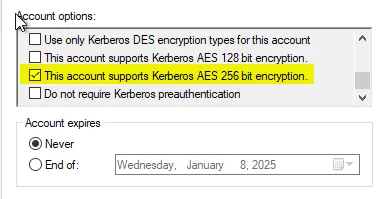
If RC4 is missing where a component expects it, or, better, if you enforce AES256 everywhere, that mismatch is the cause. Enforce Kerberos AES 256-bit encryption on the service account used to obtain the ticket:
6.4 KDC error code reference
0x6, KDC_ERR_C_PRINCIPAL_UNKNOWN (Client not found in Kerberos database): the account does not exist; a new account was added but not yet replicated to other KDCs; or the account is expired or has logon restrictions enabled.0x7, KDC_ERR_S_PRINCIPAL_UNKNOWN (Server not found in Kerberos database): the SPN is missing; a new computer account has not yet replicated to the KDC used for authentication; or the service class / domain / realm in the SPN is wrong.0x8, KDC_ERR_PRINCIPAL_NOT_UNIQUE (Multiple principal entries in database): duplicate principal names exist. Usesetspn -Xto list duplicates,setspn -Qto query, andsetspn -Dto delete.0xC, KDC_ERR_POLICY (KDC policy rejects request): usually logon-hour restrictions on the account, or constrained delegation attempted across multiple domains (unsupported on Windows 2003/2008), or client and server not in the same realm.0xE, KDC_ERR_ETYPE_NOTSUPP (KDC has no support for encryption type): the KDC or client received a packet it cannot decrypt.0x10, KDC_ERR_PADATA_TYPE_NOSUPP (KDC has no support for padata type): smart-card logon where the proper certificate cannot be located (wrong or unreachable CA). Verify a functioning CA exists and that the client can locate it.0x17, KDC_ERR_KEY_EXPIRED (Password has expired): the delegated user’s password has expired.0x18, KDC_ERR_PREAUTH_FAILED (Pre-authentication information was invalid): case-sensitive service account name mismatch, wrong password, or KDC/client time mismatch.0x19, KDC_ERR_PREAUTH_REQUIRED (Additional pre-authentication required): common in UNIX interop. MIT Kerberos clients do not request pre-authentication; Windows will send this error. The NetScaler responds with the pre-authentication, so it can usually be ignored.KRB5KRB_ERR_RESPONSE_TOO_BIG: UDP is being used for Kerberos (the default) and a single UDP frame is too small for the full ticket, common when a user is in a very large number of AD groups. The component then retries over TCP.KRB5KDC_ERR_BADOPTION/ NT statusSTATUS_NO_MATCH: a cached Kerberos ticket. The lifetime is 10 hours, after which the issue should resolve.
When everything looks correct but it still does not work: wait 10 hours and check again the next day. A cached ticket may still exist somewhere, its lifetime is 10 hours.
For all other errors, see the Citrix article CTX234153, NetScaler Kerberos Wiki / Troubleshooting.